
How to Submit a Claim Using OCR in the Kakitangan.com Mobile App
The OCR (Optical Character Recognition) feature in the Kakitangan.com mobile app allows you to submit claims faster by automatically extracting details from your receipt or invoice.
Follow the steps below to submit your claim using OCR.
Step-by-Step: Submit Using OCR (Mobile App)
1. Open the Kakitangan App
Log in to the Kakitangan mobile app using your account.
2. Go to Claims
From the home screen:
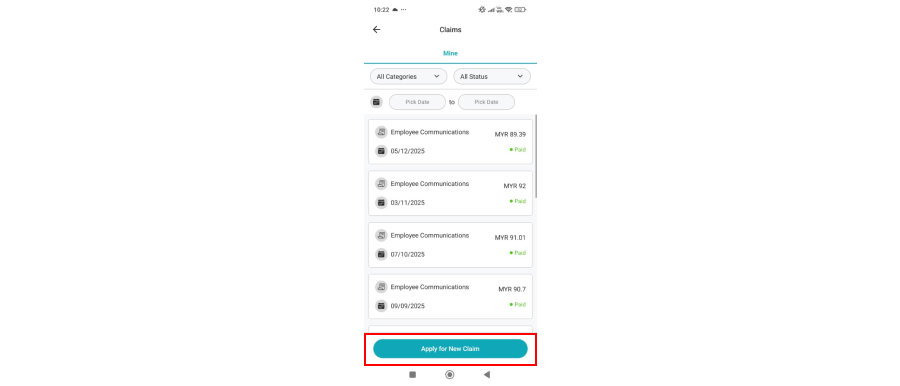
- Tap Claims
- Tap Apply for New Claim
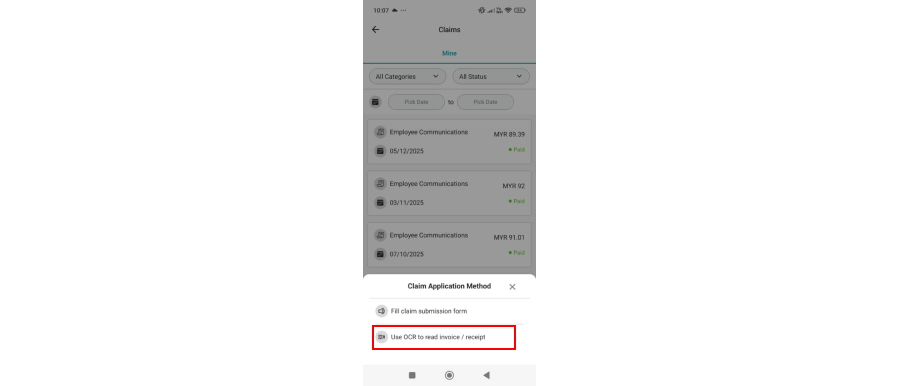
- Tap Use OCR to read invoice / receipt
3. Upload Receipt or Invoice
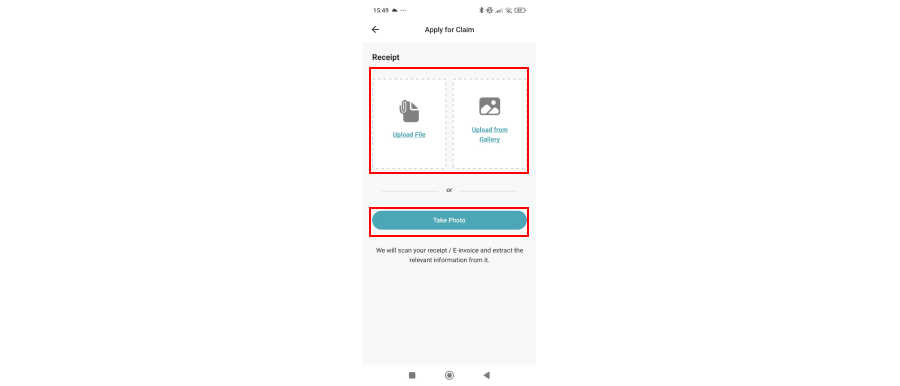
You can upload your document in two ways:
- Take a photo using your phone camera
- Upload an image or PDF from your device
💡 Tip: Make sure the receipt is clear, not blurry, and all details are visible.
4. OCR Automatically Extracts Information
Once uploaded:
- OCR will scan the document
- Extracted details will be auto-filled into the form
This may take a few seconds.
5. Review and Edit the Details
Before submitting, please:
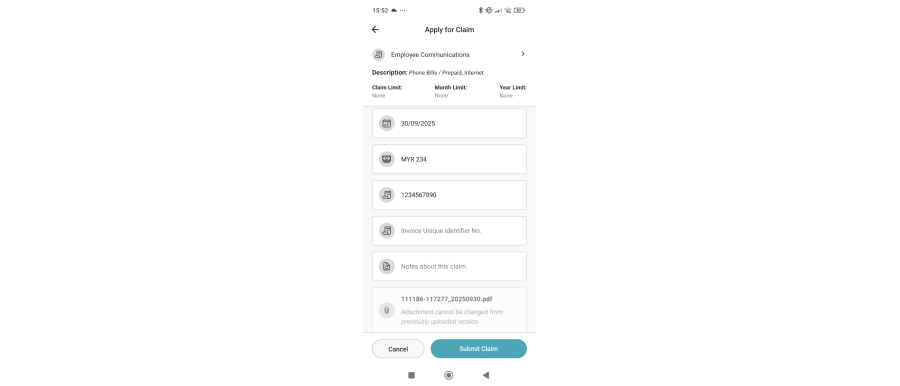
- Check the informations
- Edit any incorrect or missing information
- Select the correct claim category
⚠️ OCR helps speed things up, but accuracy depends on receipt quality.
6. Submit Your Claim
Once everything looks correct:
- Tap Submit Claim
- Your claim will be sent for approval
You can track the claim status from the Claims page.
Tips for Better OCR Results
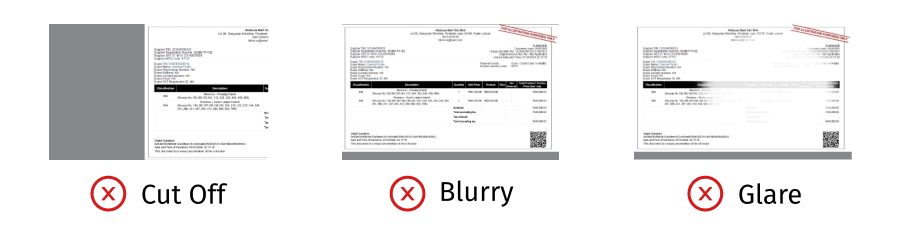
- Use good lighting – Natural light or a well-lit room works best. Avoid shadows.
- Place on a flat surface – A solid background like a table helps the app detect edges.
- Keep it straight – Hold your phone directly above the document.
- Avoid glare – Tilt slightly if there's reflection from glossy paper.
- Fill the frame – Make sure all corners of the document are visible.