
LHDN Batch Stamping Submission
Starting from 2025, all employment contracts are required to be stamped in accordance with LHDN requirements.
To facilitate this process, LHDN has introduced a batch stamping feature, allowing users to upload multiple documents in a single submission.
For successful processing, the system requires key information to be included in the submission file, specifically the Employment Contract Signed Date or Letter of Appointment (LOA) Date.
Who should be included in this submission file?
Employee who have a new employment contract or new joiner
What to check before generate the file?
Employer Address : Please ensure you have fill up correctly under Company Settings. Full address should include unit number, street name, postcode, city, state, and country
Employee Address : Please ensure the employee' address is fill up in the breakdown format under user profile.
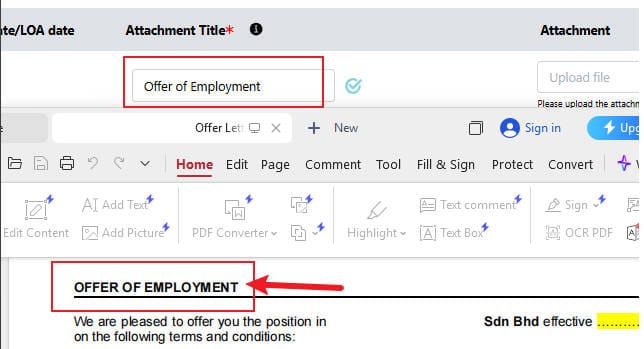
Attachment title : Please ensure the attachment title is the subject of the attachment uploaded not the file name. (eg:Letter of employment).
Employment contract signed date/LOA date : Please ensure the date is signed date not the received date under user profile. (User > employment > Employment contract signed Date/LOA Date)
What is employment contract signed date/LOA date?
The date when the employee formally signs the employment contract or Letter of Appointment (LOA).
This marks the official acceptance of the employment offer but may differ from the actual date.
The settings
What is the difference between joined date (start date) and employment status effective date in the system?
(i) Joined Date – The first working day the employee officially reports to work in the company. This date is used for salary pro-ration calculations.
(ii) Employment Status Effective Date – The date of a change in employment status takes effect, such as moving from contract to permanent or probation to permanent employment.
Where to generate the file in system?
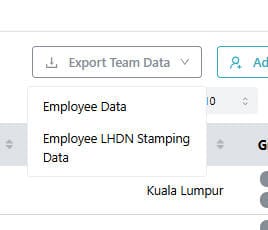
(i) Go to User page > export team data > employee LHDN stamping data
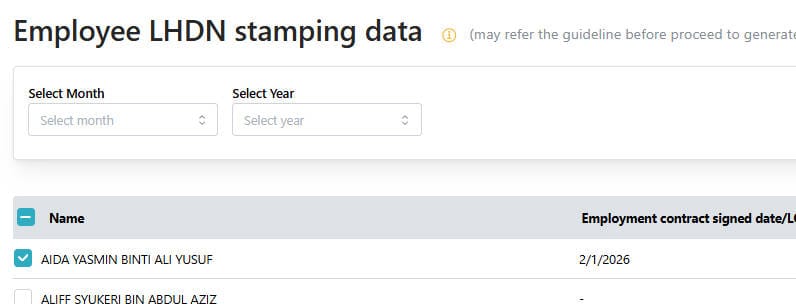
(ii) Filter the month & year > select the employee
(iii) Enter the SUBJECT in the contract
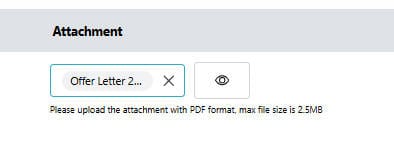
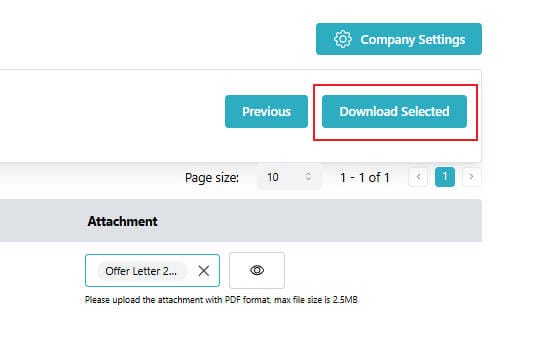
(iv) Upload the PDF file (max file size is 2.5MB) and the file name length should not exceed 64 characters
(v) Select "download selected" > Complete !!
How can i upload to LHDN portal?
-
Log in to MyTax (MyTax e‑Duti Setem / Sistem Taksir Sendiri Duti Setem (STSDS)
-
Navigate to ezHASiL service → Duti Setem → e-Duti Setem.
-
Select Ejen admin/ Ejen
-
Select Company name
-
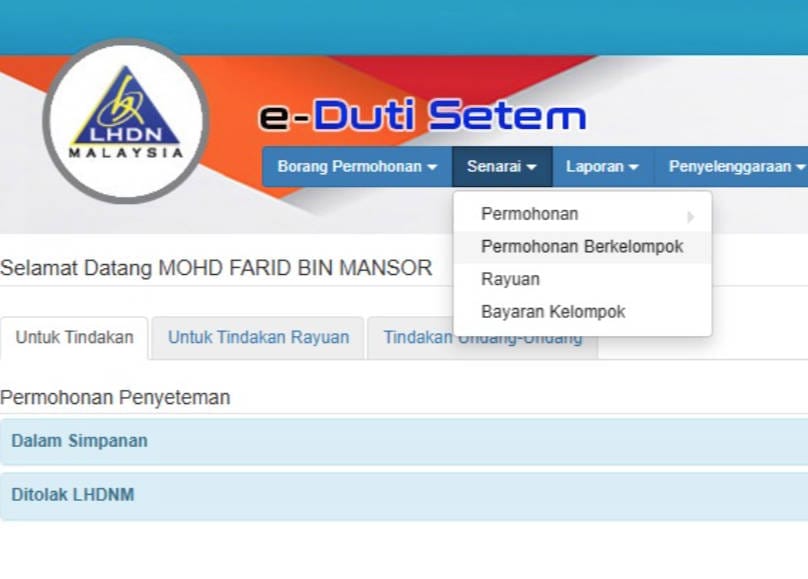
Under dashboard (https://stamps.hasil.gov.my/stamps/utama/dashboard) → Select "Senarai" → "Permohonan Berkelompok / Bulk Upload".
-
Upload the file as per download from Kakitangan.com system. (.XML) and select "choose file" to Upload → validate → review errors.
Click "Teruskan" in order to continue to the next steps, "Kembali" is back to previous page.(Read below for more) -
Confirm batch → system generates assessment for each record.
-
Make payment online for the batch.
-
Download electronic stamped certificates for all records.
===========================================
6(a) . There will be 2 result appear after you upload the file :
a. Incomplete Information
i. If the information is incomplete, an alert message will be displayed. You may select "Teruskan" to view further details.
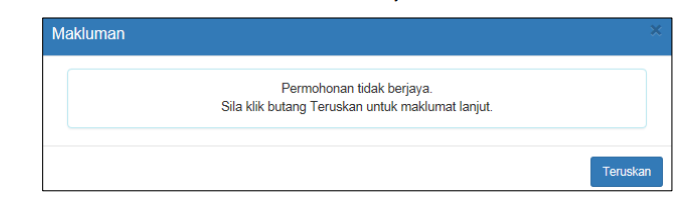
ii. The "Tidak Berjaya/ Tidak Lengkap" Application screen will be displayed.
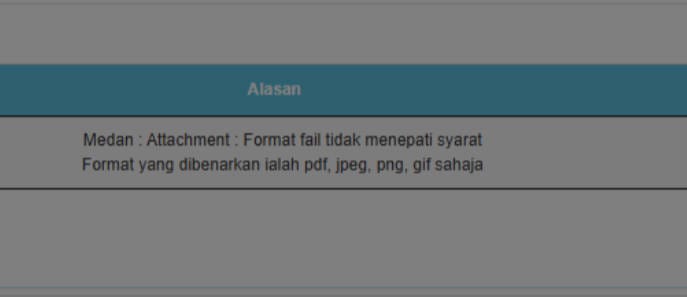
iii. You may click the "Cetak" button to print the list.

iv. You may click the "Eksport" to Excel button to export the list into an Excel file.
v. After that, click the "Kembali" to Application Screen button to reopen the bulk stamping application form screen.
b. Complete Information
i. If the information is complete, the following screen will be displayed:
Selects the "Pejabat Setem/PKH", enters a reference number (if applicable), and ticks the acknowledgement checkbox.
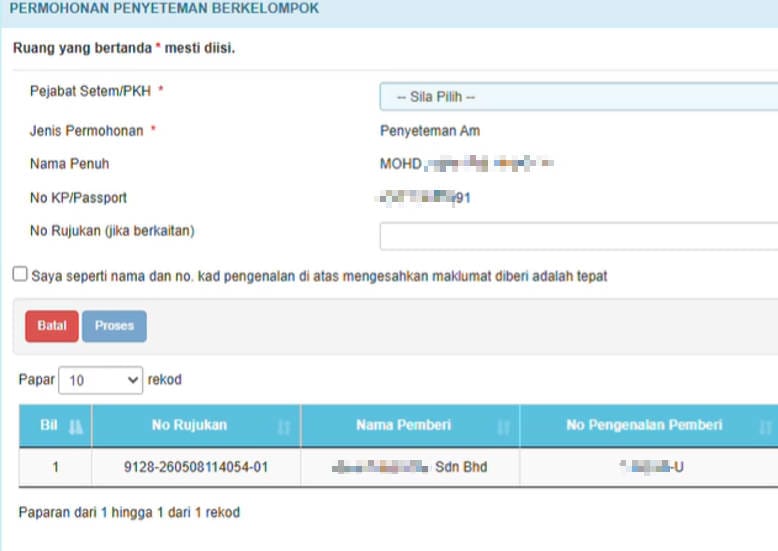
ii. Clicks the "Batal" button if you wish to cancel the application and return to the application screen.
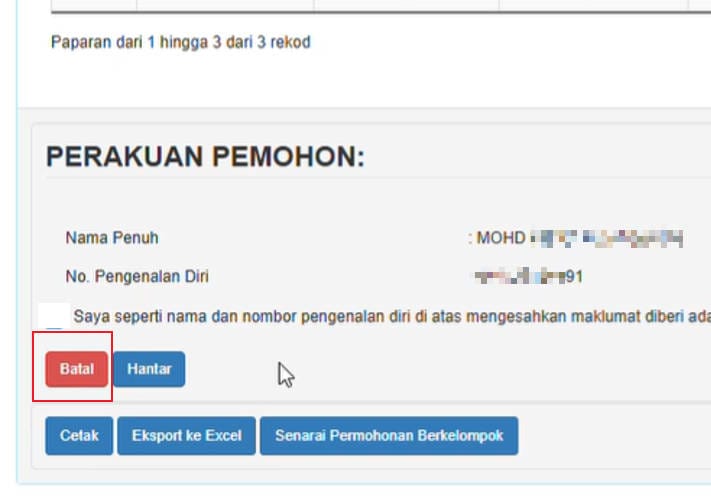
or clicks the "Hantar" button to submit the application.
iii. A Submit Application Confirmation message will be displayed.
Click "Teruskan"to submit the application, or click "Kembali" to return to the original screen.
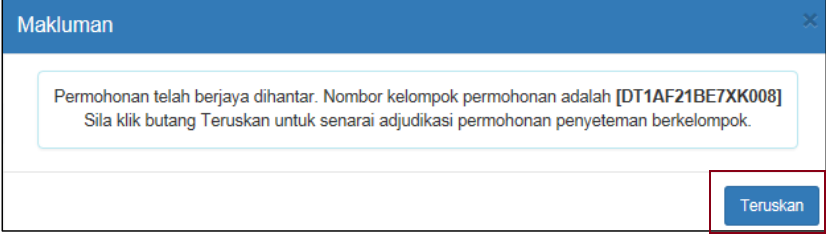
iv. Once the application is registered, the following notification will be displayed. Click "Teruskan" to view the adjudication list.
v. The adjudication list screen will be displayed.
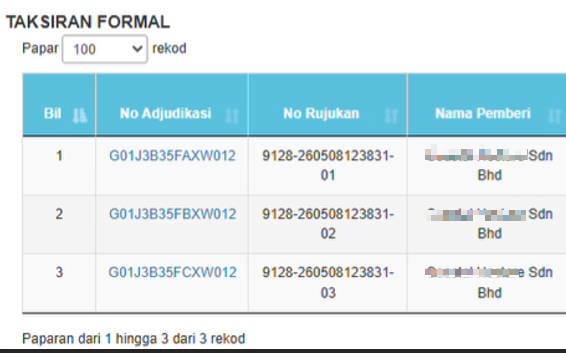
vi. you may click "No.adjudikasi", and the stamping form screen will be displayed.
How can i search for the submission under LHDN portal?
-
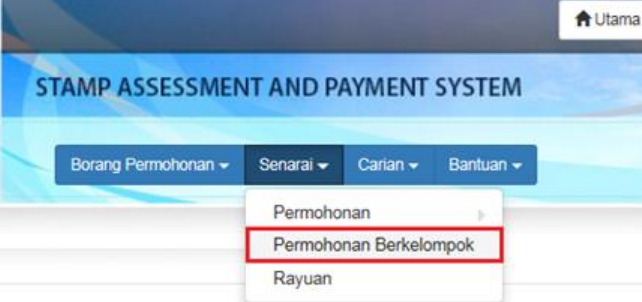
Click the "Senarai" > "Permohonan Berkelompok".
-
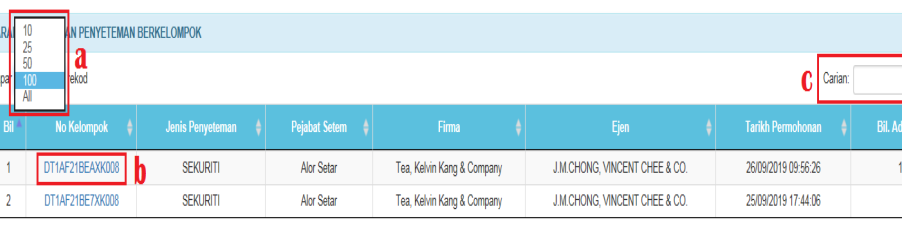
The system will display the "Senarai Permohonan Penyeteman Berkelompok".
You may :
a. Select the record display size.
b. Click the batch number to display the list of adjudications under the selected batch.
c. Perform a search by entering search information.
On the "Senarai No Adjudikasi", you can:
a. Select the record display size.
b. Click the "no adjudikasi" to display the stamping form.
c. Perform a search by entering search information under "Carian"
d. Click the "Cetak" to print the list.
e. Click the "Eksport ke Excel" to export the list into an Excel file.
f. Click the "kembali ke Skrin Permohonan" to open the Bulk Stamping Application Form.
g. Click the "Senarai Permohonan Berkelompok" to open the list of bulk applications submitted.
How about single submission? Can I submit a single entry?
Yes, you can. No file is required from our system.
(i) You may log in to MyTax (MyTax e‑Duti Setem / Sistem Taksir Sendiri Duti Setem (STSDS)
(ii) Navigate to ezHASiL → Duti Setem → e-Duti Setem.
(iii) Upload the employment contract document (PDF).
(iv) Complete the self-assessment form (STSDS).
(v) Make payment online.
(vi) Download your stamp duty certificate.
If you have any further questions/inquiries, please feel free to email to support@kakitangan.com or reach us via live chat.